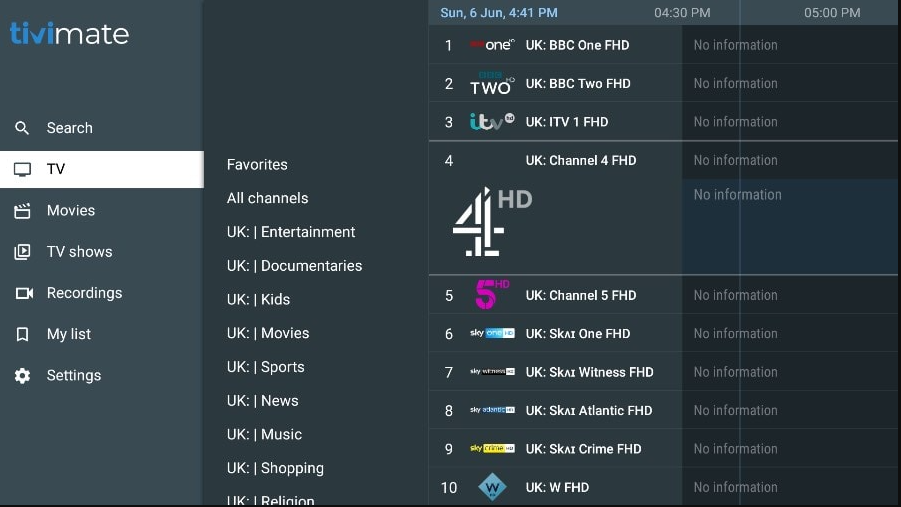
For Android TV and Amazon Firestick owners, TiviMate IPTV Player is widely recognized as the premier media application available today. Unlike generic video player apps, TiviMate features a polished, cable-style Electronic Program Guide (EPG) interface, multi-screen channel view, recording support, and fast channel zapping.
When paired with high-performance server credentials from TV Empire, tivimate firestick transforms your television experience into a high-speed, buffer-free media hub. This guide walks you step-by-step through installing Downloader, side-loading TiviMate, and configuring Xtream API logins.
Step 1: Install the Downloader App on Amazon Firestick
Because TiviMate is designed for television interfaces, installing it on Amazon Firestick requires using the official Downloader utility from the Amazon Appstore:
- From your Firestick Home screen, navigate to Find > Search.
- Type Downloader and select the orange Downloader icon.
- Click Download / Get to install the application.
- Return to Firestick Settings > My Fire TV > Developer Options.
- Select Install Unknown Apps and toggle Downloader to ON.
Step 2: Add TV Empire Xtream Codes API Credentials
We strongly recommend connecting TiviMate using the Xtream Codes API parameter format rather than long M3U URLs. Xtream API enables automated 7-day EPG updates and separates channels from video-on-demand categories cleanly.
Recommended Playback Settings
Inside TiviMate Settings > Playback, set Video Decoder to Hardware (HW) and enable Auto Frame Rate (AFR). This matches your Firestick display refresh rate to 60FPS sports feeds automatically.
Important: Clear Cache Weekly
Firestick devices have limited internal storage. If TiviMate runs sluggishly, open Firestick Settings > Applications > Manage Installed Applications > TiviMate > Clear Cache.
Frequently Asked Questions (FAQ)
Do I need TiviMate Premium or is the free version enough?
While the free version of TiviMate works for basic channel playback, TiviMate Premium is recommended for multi-screen view, favorites management, and manual EPG offset adjustments.
Why are channel logos or program guides missing?
Go to TiviMate Settings > EPG > click Update EPG. Ensure your device has an active internet connection to download guide XML data.
Does TV Empire provide setup support for Firestick?
Yes! Our technical support desk offers 24/7 step-by-step assistance over WhatsApp to help configure your Firestick in minutes.
Pair TiviMate With TV Empire Premium Credentials
Experience 50,000+ live channels and fast channel zapping on your Firestick today with a 24-hour free trial.